The two-tier metric system
BuddyPT separates what you instruct from what the client records. This is the single most important idea in the builder.
| Tier | Who fills it in | Typical metrics |
|---|---|---|
| Trainer Instructions | You, when building the workout | Reps, Time (s), Distance (m) |
| Client Logs | The client, during the session | Weight (kg), RPE (/10), Heart Rate |
In the sets table your instruction columns are on the left in blue and the client's columns on the right in green. The green cells appear as dashed placeholders while you build — they fill in when the client trains.
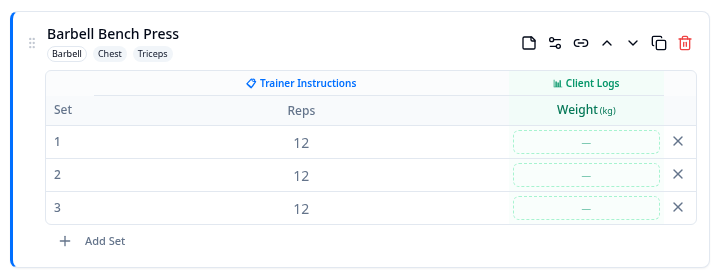
Editing sets
- Type directly into a cell to prescribe a value for that set — for example 12, 10, 8 for a descending rep scheme.
- Click Add Set to append another set.
- Use the remove icon on a set row to delete it. The last remaining set cannot be removed.
- Click the sliders icon on the exercise to switch metric columns on or off for that exercise only.
What clients log here feeds the numbers you review later in Workout monitoring & client feedback and in Activities & metrics.
Rest timers
- A rest indicator sits between exercises. Click it for presets of 30s, 60s, 90s and 120s, or type a custom value in seconds.
- Rest defaults to the section standard when an exercise is added.
- There is no rest shown after the final exercise of a section.
- Supersets show a single Rest between rounds timer for the whole block.
Supersets
- 1Add the two exercises you want to pair, one directly above the other.
- 2Click the link icon on the first exercise.
- 3The pair is wrapped in a purple superset block labelled *“Superset · 2 exercises”*.
- 4To add a third movement, click the link icon again on the block's first exercise — the next exercise below joins the group.
- 5To break the group, click Unlink in the block header.
Supersets run back to back with no rest between the paired movements; the rest timer applies once the round is finished. They are the simplest way to fit a full session into a 30-minute lunch-break slot.
Coaching notes
Click the sticky note icon on any exercise to add a coaching cue — for example *“Pause one second at the bottom”* or *“Stop two reps short of failure”*. Notes are visible to the client in their app, so write them as instructions to them, not reminders to yourself.
Workout details & saving
- Name — typed into the top bar. Leave it blank and the workout saves as *Untitled Workout*.
- Description — the text box above the sections; use it for session intent, warm-up guidance or safety notes.
- Difficulty — Beginner, Intermediate or Advanced, shown as a badge on the library card.
- Tags — type a tag and press Enter (push, legs, hiit, recovery). Click the cross on a tag to remove it.
- 1Click Save Workout in the top bar.
- 2BuddyPT estimates the session duration automatically from the number of sets and your rest times.
- 3The workout appears at the top of the Workouts tab with a confirmation message.