The nine-step flow
- 1On the Workouts tab, click Create Workout.
- 2The builder opens with an empty session and three ready-made sections: Warm-Up, Main Workout and Cool-Down.
- 3Type a workout name in the field at the top.
- 4Choose a difficulty — Beginner, Intermediate or Advanced.
- 5Add a description and tags so the workout is easy to find later.
- 6Drag exercises from the Exercise Library on the left into the section where they belong.
- 7Set the reps, time or other prescribed values for each set.
- 8Adjust rest times, link supersets and add coaching notes where needed.
- 9Click Save Workout.
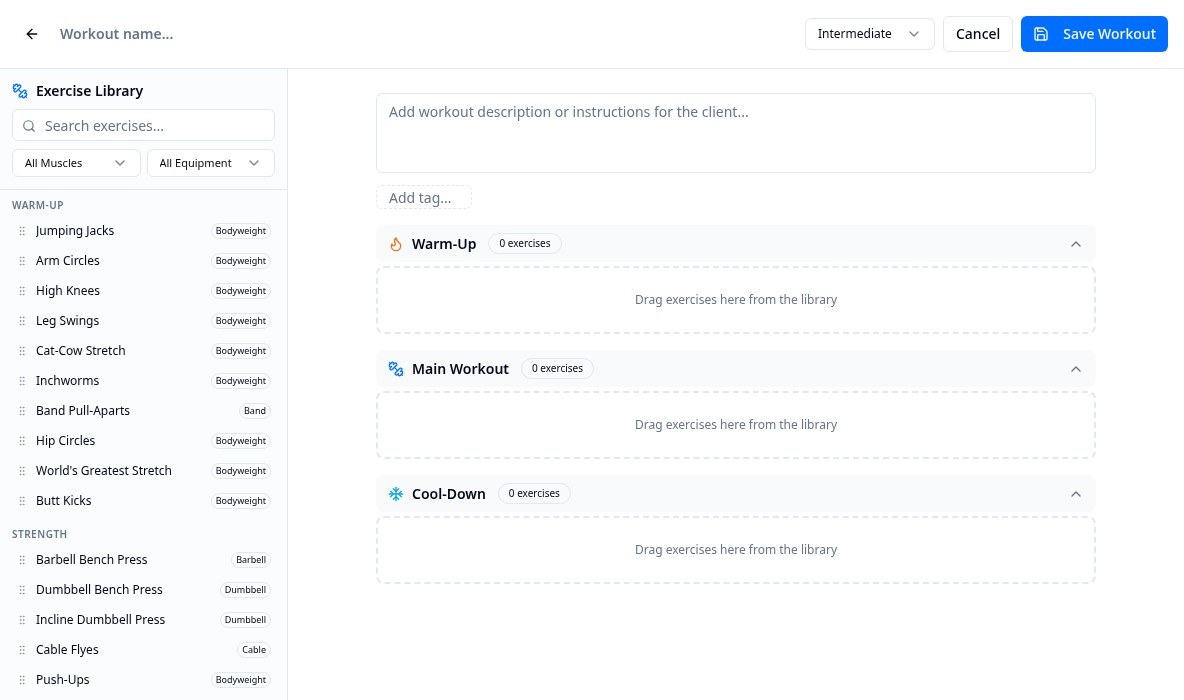
The Exercise Library panel
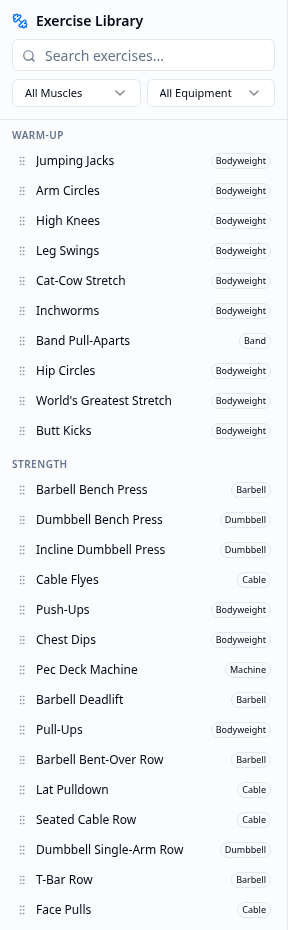
The left panel holds the full BuddyPT exercise database, grouped by category — Warm-Up, Strength, Cardio, Plyometric and Cool-Down.
- Search exercises — type a name to narrow the list instantly.
- Muscle filter — Chest, Back, Shoulders, Biceps, Triceps, Forearms, Core, Quads, Hamstrings, Glutes, Calves, Full Body, Cardio.
- Equipment filter — Barbell, Dumbbell, Kettlebell, Machine, Cable, Bodyweight, Band, TRX, Medicine Ball, Foam Roller, Box, Bench, No Equipment.
- Equipment badge — every row shows the kit it needs, so you can build for the gym the client actually trains in.
To add an exercise, drag its row into a section on the canvas. The section highlights in blue when it is ready to receive the drop.
Real-world example
Your client trains in a hotel gym with dumbbells and a bench only. Set Equipment → Dumbbell, Bench, Bodyweight before you start dragging, and every movement you see is one they can genuinely perform.
Sections: Warm-Up, Main Workout, Cool-Down
Every workout is split into three sections so clients always know which phase they are in.
| Section | Purpose | Default rest |
|---|---|---|
| Warm-Up (flame icon) | Mobility, activation and raising the pulse | 30 seconds |
| Main Workout (dumbbell icon) | The training stimulus — strength, hypertrophy or conditioning | 90 seconds |
| Cool-Down (snowflake icon) | Stretching, foam rolling and down-regulation | 30 seconds |
- Click a section header to collapse or expand it — useful when the main block gets long.
- The header shows a live count of exercises in that section.
- An empty section shows the prompt *“Drag exercises here from the library”*.
Working with exercises
Each exercise you add becomes a card showing its name, equipment badge and target muscles, with a row of actions on the right.
| Action | Icon | What it does |
|---|---|---|
| Notes | Sticky note | Show or hide a coaching note for that exercise. |
| Configure metrics | Sliders | Choose what you prescribe and what the client logs. |
| Superset with next | Link | Joins this exercise to the one below it. |
| Move up / Move down | Chevrons | Reorders the exercise within its section. |
| Duplicate | Copy | Creates an identical copy directly below. |
| Remove | Bin | Deletes the exercise from the workout. |
New exercises start with three sets and sensible defaults based on their category: strength gets reps prescribed and weight logged; cardio gets time and distance prescribed with heart rate and calories logged; warm-up and cool-down movements get reps and time only.
Editing an existing workout
- 1Go to Library → Workouts.
- 2Click the workout card (or row in list view).
- 3It opens in the builder with all sections, exercises, sets, rest times and notes exactly as saved.
- 4Make your changes — add or remove exercises, retune sets, change difficulty or tags.
- 5Click Save Workout to update it, or Cancel to abandon the changes.

Keep the original
Editing overwrites the template everywhere it is used as a future assignment. If you want the original preserved, duplicate it first and edit the copy.