BuddyPT separates daily actions from physical outcomes. Activities show behaviours such as steps, sleep and calories burned, while Client Metrics show changes in measurements such as weight, body fat and lean muscle mass. Reviewing both gives you a more balanced picture than relying on a single weigh-in.
Review client activities
- 1Open Clients and select the client you want to review.
- 2Select Activities in the client navigation.
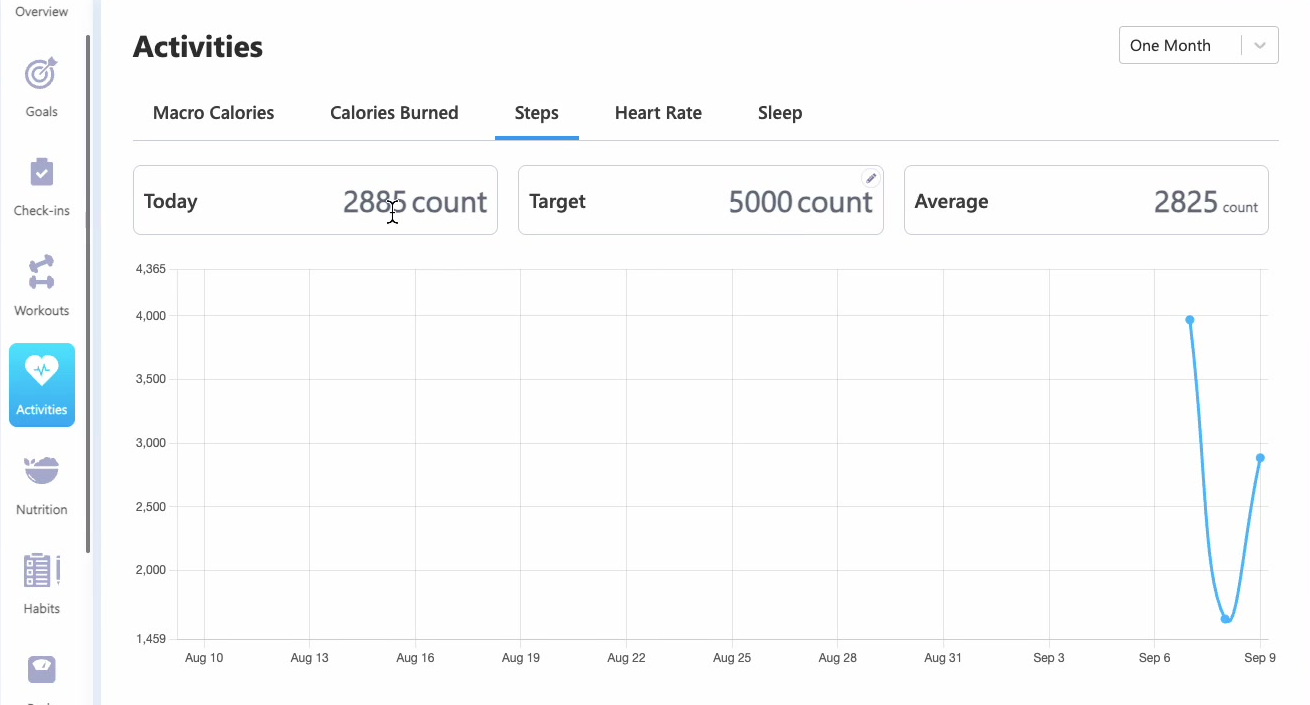
- 3Choose Macro Calories, Calories Burned, Steps, Heart Rate or Sleep to display its summary and chart.
| Activity | What a trainer should review |
|---|---|
| Macro Calories | Compare nutrition intake with the client’s agreed calorie target and current coaching phase. |
| Calories Burned | Use as an activity estimate and review it alongside training load; avoid treating it as an exact energy calculation. |
| Steps | Check daily movement and consistency against the client’s agreed step target. |
| Heart Rate | Look for changes or unusual values in context, including exercise, recovery and how the client feels. |
| Sleep | Review duration and consistency alongside recovery, energy, hunger and workout performance. |
Compare activity with targets
- 1Read Today for the selected activity and compare it with Target, where a target is shown.
- 2Review Average and the dated chart to understand the broader pattern.
- 3Open the period menu and choose One Month, 6 Months, 12 Months or 24 Months.
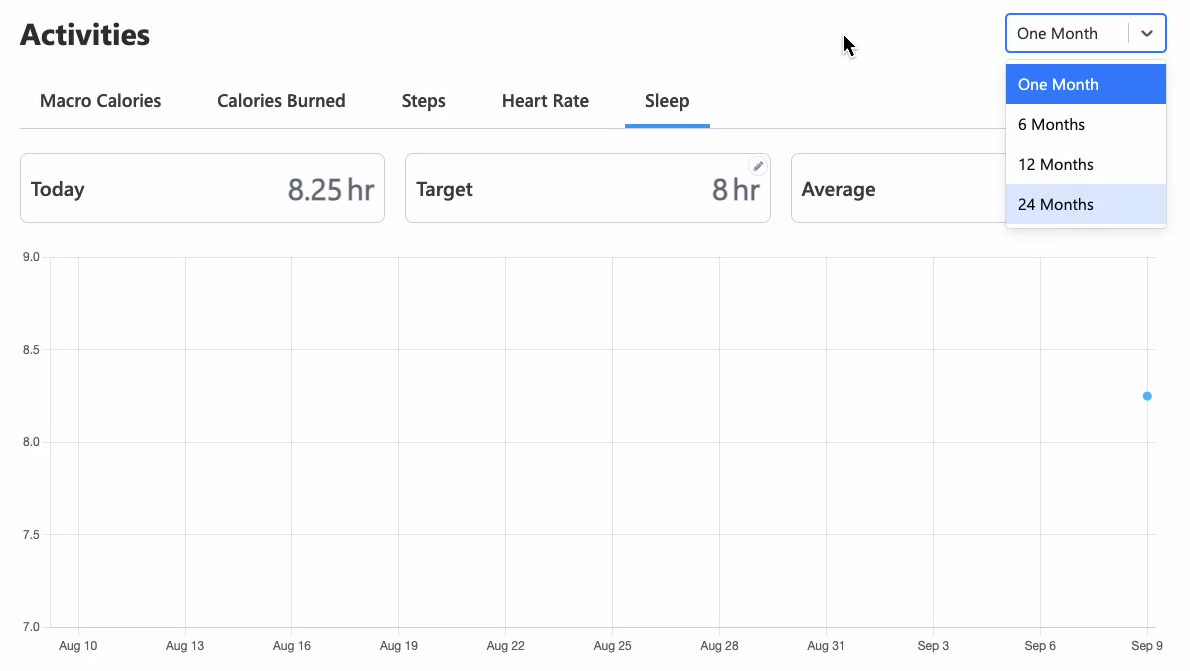
Example: A client records 2,885 steps today against a 5,000-step target, with an average of 2,825. Rather than immediately increasing cardio, ask whether the recent low movement reflects desk-based work, illness, travel or missing data. A practical next action might be a ten-minute walk after lunch on four working days.
Review the client metrics table
- 1Open the client’s Metrics tab.
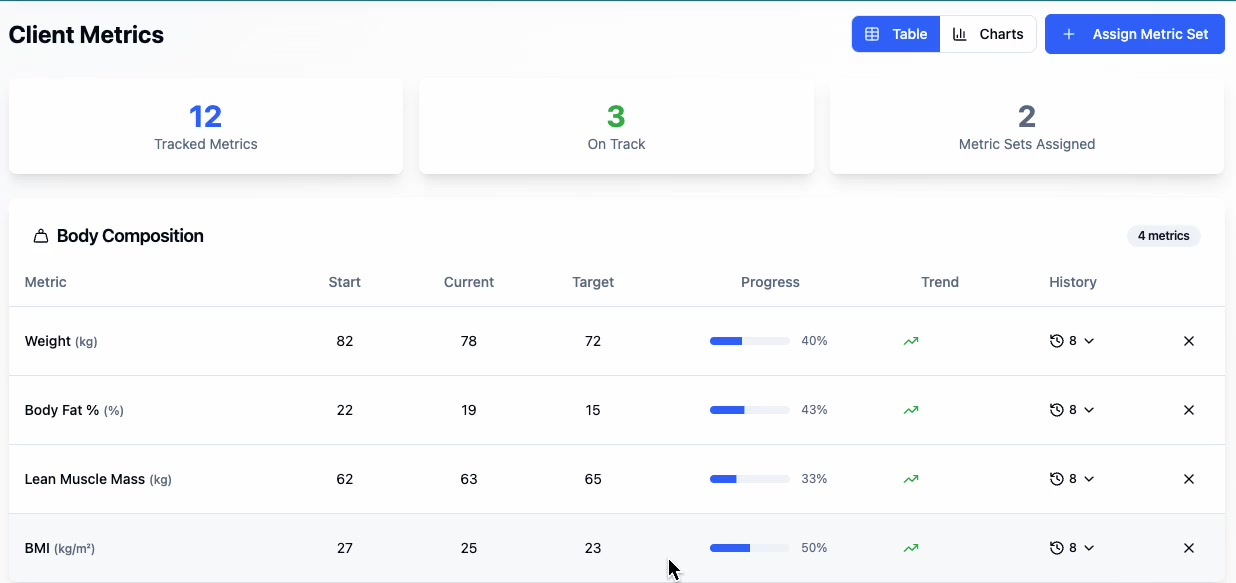
- 2Select Table and review Tracked Metrics, On Track and Metric Sets Assigned.
- 3Scroll through each assigned set, such as Body Composition or Full Body Measurements.
| Column | How to use it |
|---|---|
| Start | The baseline used for this coaching journey. |
| Current | The current summary value; confirm it against the latest dated entry when needed. |
| Target | The agreed outcome the client is working towards. |
| Progress | Progress from the starting value towards the target. |
| Trend | Direction of change; interpret it according to the goal for that measurement. |
| History | Dated records used to investigate how and when the value changed. |
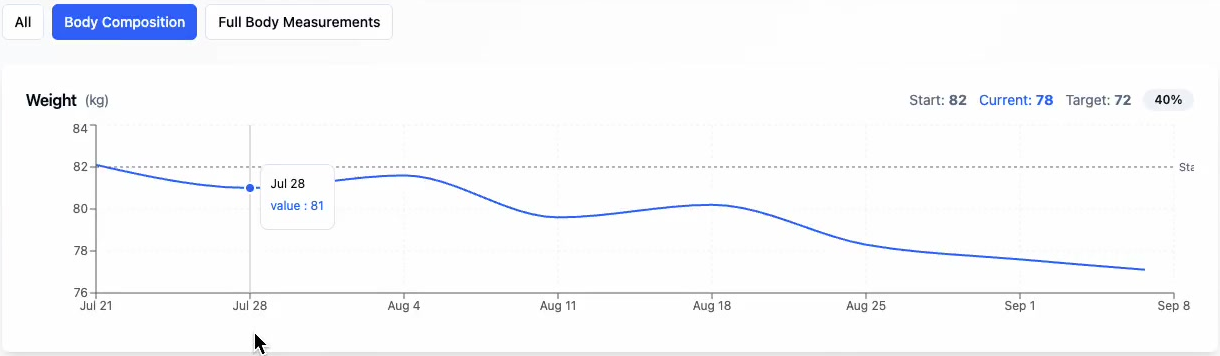
Example: Weight moves from 82 kg to 78 kg against a 72 kg target, showing 40% progress. For a fat-loss client that may support the plan, but for a muscle-gain client a downward trend may need a different conversation. Always interpret direction against the client’s goal.
Open measurement history
- 1In Table view, locate the measurement you want to investigate.
- 2Select its History control to expand the dated records.
- 3Compare several entries, including the change from the previous record, then use the chevron to collapse the history.
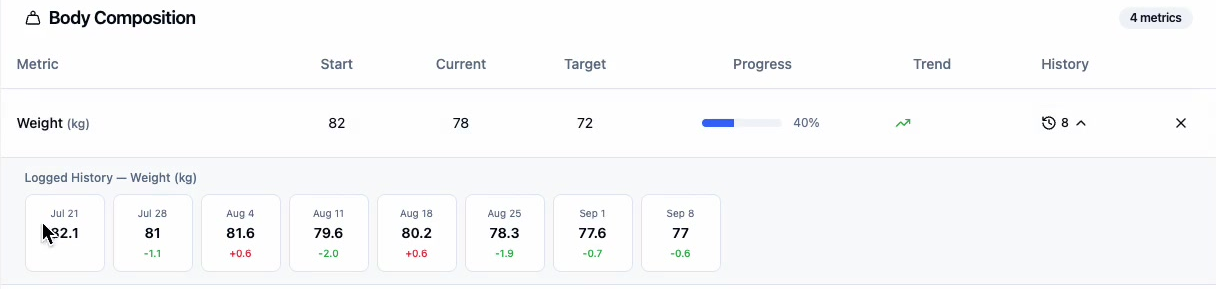
A client’s weight may rise temporarily because of hydration, sodium intake, digestion, the menstrual cycle or a hard training session. Compare several entries and supporting behaviours before changing calories or training volume.
Review progress charts
- 1Select Charts at the top of Client Metrics.
- 2Choose All or filter by a metric set such as Body Composition.
- 3Review the dated values and the Start, Current, Target and progress percentage above each chart.
- 4Hover over a plotted point to inspect its date and value. Select Table to return to the summary and history controls.
Run a useful progress review
- 1Confirm the review period and date of the latest records.
- 2Recognize consistent actions, including workouts, nutrition, steps and sleep.
- 3Review metric trends against the client’s specific goal.
- 4Ask about missing data, plateaus or unexpected changes without making assumptions.
- 5Agree on one or two realistic actions and revisit them at the next check-in.
Real-world check-in: A client’s weight has held steady for two weeks, but steps have risen, workouts are complete and waist measurements are falling. Recognize the consistent work and improving body-composition signal before deciding whether any plan adjustment is necessary.