What the Workouts library is for
A workout you save in the Library becomes a reusable template: you can assign it to any client, drop it into a multi-week program, duplicate it for a variation, or edit it whenever your coaching approach changes. Build once, reuse forever.
There are two ways to create a workout. Manual creation opens the Workout Builder so you drag exercises in yourself — full control, ideal for signature sessions and clients with specific needs. AI generation drafts a full session from your rules in seconds. Both routes end in the same Workout Builder, so everything you learn about editing applies to AI drafts too.
Getting to the Workouts library
- 1Open BuddyPT and sign in.
- 2Click Library in the left-hand menu.
- 3The Library opens on the Workouts tab by default.
The Library has five tabs — Workouts, Exercises, Forms, Habits and Metrics. On a phone the tabs show as icons only; the dumbbell icon is Workouts. Metric sets are covered separately in Metrics & metric sets overview.
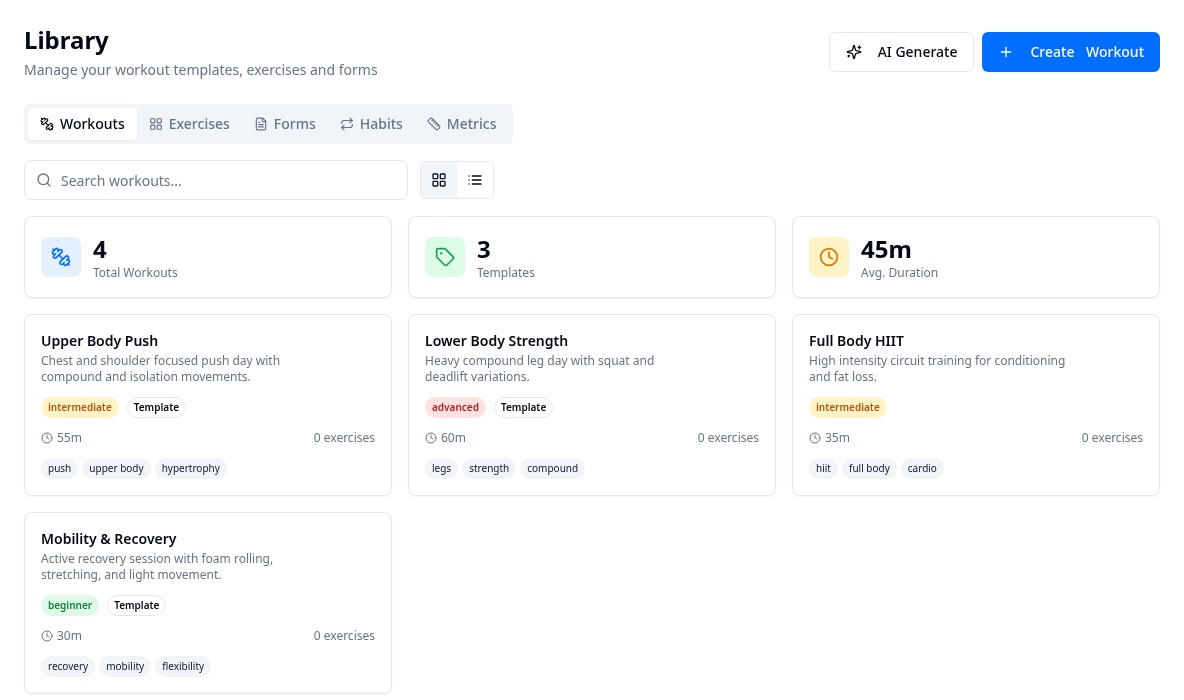
The screen at a glance
| Area | What it does |
|---|---|
| AI Generate | Opens the AI Workout Builder to draft a session from your rules (1 credit). |
| Create Workout | Opens an empty Workout Builder for manual creation. |
| Search box | Filters your saved workouts by name as you type. |
| Grid / List toggle | Switches between card view and compact row view. |
| Summary cards | Total Workouts, Templates and average session duration. |
| Workout cards | One per saved workout, showing difficulty, duration, exercise count and tags. |
Finding workouts
- Search — type any part of a workout name; the list filters instantly.
- Grid view — cards with description, difficulty badge, Template badge, estimated duration, exercise count and up to three tags.
- List view — compact rows; the better choice once your library grows past 20 or 30 sessions.
- Tags — a small, consistent vocabulary (push, pull, legs, hiit, recovery) makes search far more useful than clever names.
Duplicating and deleting
Hovering a card or row reveals a Duplicate icon and a Delete icon.
- Duplicate — creates a copy immediately, named *“<Workout name> (Copy)”*, at the top of the list. Ideal for week-two progressions or gym-specific variants.
- Delete — removes the workout from your library.
How saved workouts are used
- Assign a workout to a specific day inside a client's program — see Workouts: building & assigning programs.
- Reuse the same template across many clients; each client's logged results are tracked separately.
- Clients see your prescribed values in their app and fill in the logged columns as they train.
- Completions and logged results roll up into compliance reporting — review them in Workout monitoring & client feedback and on your Dashboard.