Create a form
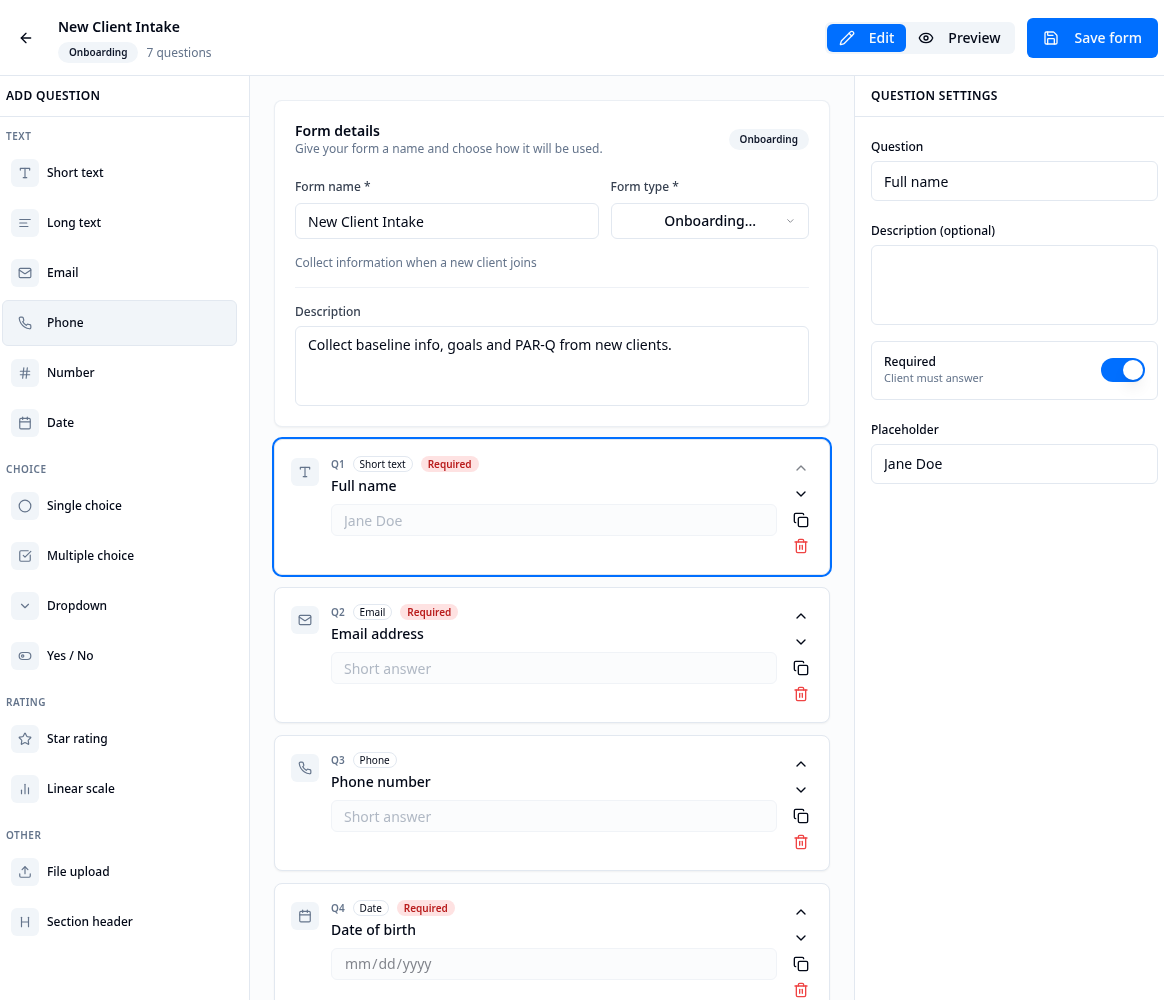
- 1Go to Library → Forms and select Create Form.
- 2Give the form a clear name, choose its type and add a short description.
- 3Select question types from the palette on the left; each is added to the end of the form.
- 4Configure the selected question in the settings panel on the right.
- 5Use Preview to complete a client-side test.
- 6Select Save form when ready.
Set the form details
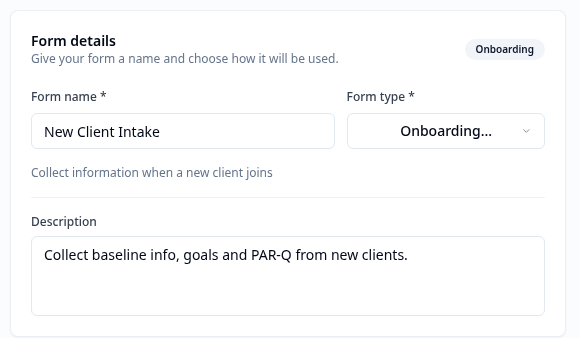
Use a name a trainer can recognise quickly, select the type that matches its destination, and write a description that tells the client what to expect.
Real-world example
Name the form Weekly Coaching Check-In, choose Check-In, and describe it as “A two-minute review of training, nutrition and recovery.” This explains its purpose and sets a realistic time expectation.
Choose the right question type
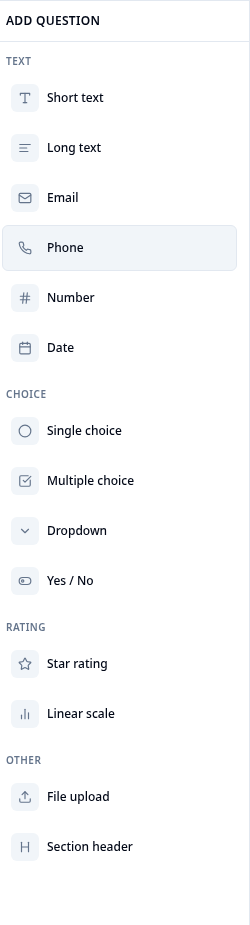
| Question type | Fitness coaching example |
|---|---|
| Short / Long text | Preferred name, or a detailed account of this week's biggest barrier |
| Email / Phone | Lead enquiry contact information |
| Number / Date | Hours of sleep, date of birth or event date |
| Single choice | Primary goal: lose fat, build muscle or improve fitness |
| Multiple choice | Available equipment or preferred training days |
| Dropdown | Preferred session location |
| Yes / No | Has a doctor advised you not to exercise? |
| Star rating | How useful was this week's coaching support? |
| Linear scale | Rate energy, stress or soreness from 1 to 10 |
| File upload | Progress photo or referral document |
| Section header | Health history, Goals, Training preferences |
Structure forms for completion
- Begin with easy questions, then move into health, goals or reflective detail.
- Use section headers to divide longer intake forms into readable groups.
- Prefer choice questions when answers are predictable; they are quicker to complete and compare.
- Keep weekly check-ins short enough to complete in around two minutes.
- Ask only for information that changes how you will coach the client.
Example intake flow
Start with contact details, add Health & Readiness, ask about injuries and restrictions, then add Goals & Preferences with one primary-goal choice and a long-text context question. Finish with availability.