What Forms are used for
A form is a structured set of questions that helps you collect consistent information. Instead of asking the same questions in messages, build the form once in Library → Forms and reuse it wherever that form type is supported.
Real-world examples
Use an Onboarding form for health history, goals and PAR-Q information; a Check-In form for weekly recovery, training and nutrition reflections; and a Normal form for lead enquiries, event sign-ups, consent or coaching feedback.
Open and read the Forms library
- 1Open Library from the left-hand menu.
- 2Select the Forms tab.
- 3Use search or the All, Onboarding, Normal and Check-In filters to narrow the collection.
- 4Select Create Form to start, or select an existing card to edit it.
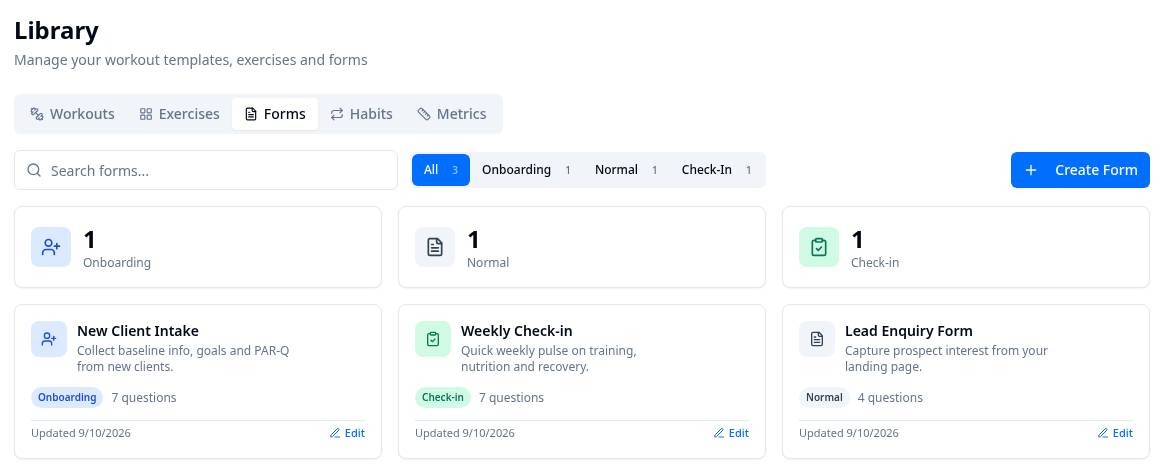
| Area | How to use it |
|---|---|
| Search | Type part of a form name or description; results update immediately. |
| Type filters | Show only Onboarding, Normal or Check-In forms. The number is the live count. |
| Summary cards | Show how many forms of each type are in the library. |
| Form cards | Show the name, description, type, question count, updated date and Edit action. |
| Create Form | Opens an empty form builder. |
Choose the correct form type
| Type | Best for | Example |
|---|---|---|
| Onboarding | Information collected when a client joins | Health history, injuries, goals, preferences and PAR-Q |
| Check-In | Questions completed during a recurring check-in | Sleep, stress, hunger, recovery, wins and barriers |
| Normal | General-purpose information collection | Lead enquiry, feedback, event registration or consent |
Type controls where a form appears
Only Check-In forms appear in check-in settings, and only Onboarding forms are offered during client onboarding. If you need the same questions in two workflows, duplicate the form and change the copy's type.
Finding a form quickly
Search and filters work together. For example, select Check-In, then search “weekly” to find weekly check-ins without scanning other forms. If nothing matches, clear the search or return the filter to All.
Build first, use second
Once saved with the correct type, a form becomes selectable in the relevant workflow. See Client onboarding or Check-ins management.