Configure the selected question
Select a question card in the centre. Its settings appear on the right and change to match the question type. Every question can have clear wording, optional context and a Required setting.
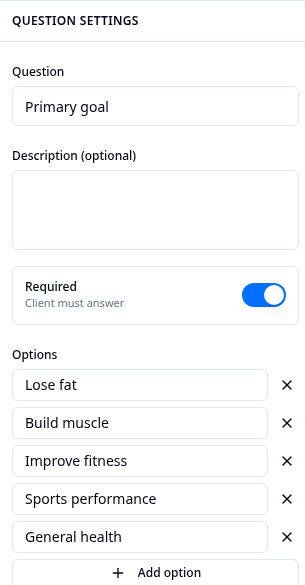
| Setting | What it changes |
|---|---|
| Question | The wording shown to the client. |
| Description | Optional context, instructions or units. |
| Required | Prevents submission until answered. |
| Placeholder | An example or prompt inside a text field. |
| Options | Available answers for choice and dropdown questions. |
| Scale labels | Meaning of the low and high ends of a scale. |
Use Required selectively
Require only answers you cannot safely or meaningfully proceed without. Health screening may be essential; an optional weekly comment should not block submission.
Reorder, duplicate or remove questions
- Use the up and down arrows to move a question one position. Questions are not reordered by dragging.
- Use Duplicate to copy a question and its settings — useful for consistent 1–10 scales.
- Use the bin icon to remove a question.
- A question's type cannot be changed. Delete it, add the correct type, then move the replacement into position.
Real-world example
Build one scale labelled 1 = very poor and 10 = excellent. Duplicate it for Sleep, Energy and Recovery, changing only the question text. Consistent scoring speeds completion and comparison.
Preview as the client
- 1Select Preview in the top toolbar.
- 2Work through the form and test every answer control.
- 3Check required asterisks and section breaks.
- 4Confirm wording is clear without trainer explanation and the form is not too long.
- 5Select Edit to return. Test answers are not saved as responses.
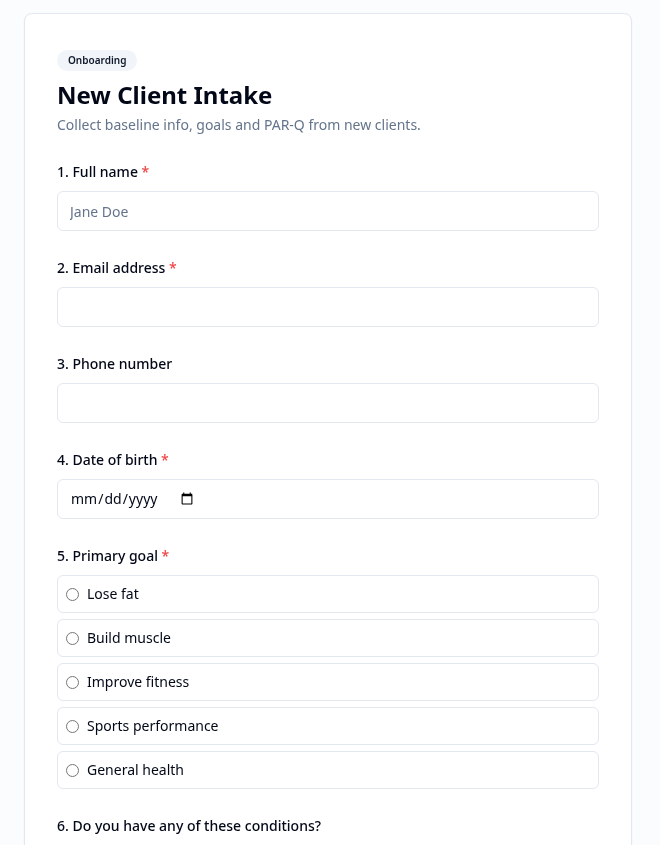
Section headers are not numbered. A Submit button appears when there is at least one answerable question. Switching between Edit and Preview does not remove your work.
Building on a phone
On smaller screens, the builder reorganises into a mobile-friendly flow. You can edit forms away from your desk, although long forms are generally quicker to build on a larger screen. Always preview after a mobile edit.