Creating a custom metric
If you measure something the library doesn't cover — a sport-specific test, a clinic protocol, a piece of gym equipment — create it once and reuse it forever.
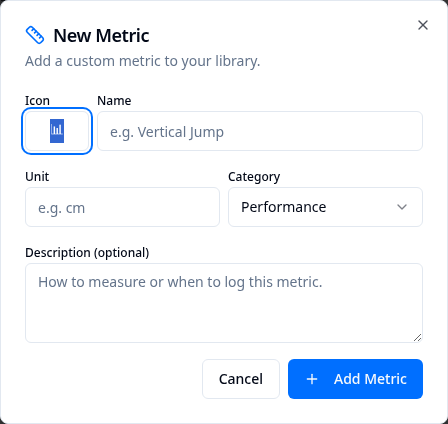
- 1Click New Metric (top-right), or click New metric from inside the Create Metric Set dialog to add it without losing your place.
- 2Pick an Icon. This is what your eye scans for on the client's Metrics tab, so choose something memorable.
- 3Enter the Name exactly as you'd say it to a client — e.g. “Concept2 2K Split”.
- 4Enter the Unit. Suggestions include kg, lbs, cm, in, %, reps, sec, min, hours, bpm, kcal, g, L, ml, 1-10, level, steps and mmHg — but you can type anything.
- 5Choose a Category so it files itself correctly in the library filter. Use Other if nothing fits.
- 6Optionally add a Description explaining how to measure it — invaluable when a second coach picks up the client.
- 7Click Add Metric. It appears at the top of the library with a Custom badge and can be used in any set.
Real-world example
A rowing coach adds Concept2 2K Split (min:sec, Sports Performance) with the description “seated erg, damper 5, after 10-min warm-up”. Every athlete is now tested identically, so the times are genuinely comparable month to month.
Deleting a custom metric
Only custom metrics can be deleted (the bin icon appears on hover). When you delete one, BuddyPT also removes it from every set that referenced it, so no set is left pointing at a missing measurement. Built-in metrics cannot be deleted — if you never use one, simply leave it out of your sets.
Recommended set-ups by client type
| Client type | Assign these sets | Logging rhythm |
|---|---|---|
| New client (any goal) | Health Vitals at intake | Once, during onboarding |
| Fat loss | Weight Loss Program + Full Body Measurements | Weight weekly, tape monthly |
| Muscle gain | Body Composition + Strength Benchmarks | Body comp fortnightly, 1RMs every 6 weeks |
| Endurance | Cardio & Endurance + Recovery & Readiness | Recovery weekly, benchmarks monthly |
| Lifestyle / habit coaching | Daily Wellness Check + Activity Tracking | Daily or at each check-in |
| Rehab / over 50 | Mobility Assessment + Health Vitals | Every 4 weeks |
| Online-only client | Body Composition + Nutrition & Macros | Weekly with check-in photos |
Keep sets small
A set the client can complete in two minutes gets filled in. A 15-metric set gets skipped. Track the numbers that change your coaching decisions and leave the rest out.
Best practices
- Name sets by outcome, not by metric. “Weight Loss Program” beats “Weight + BF + Waist” — your future self will scan faster.
- One measurement protocol per metric. Use the description field to state when and how (“waist at navel, morning, unfed”). Consistency beats precision.
- Match the rhythm to the metric. Weight weekly, tape monthly, 1RMs every 6 weeks — measuring too often just adds noise.
- Standardise across your team. Agree on a shared set list so any coach can cover any client without renegotiating what gets measured.
- Use Other sparingly. It's a valid catch-all, but a correctly categorised metric is easier to find later through the category filter.
Troubleshooting
| Question | Answer |
|---|---|
| I clicked Create Set and nothing happened. | Either the name is empty or no metrics are ticked. Both are required — a red toast explains which one is missing. |
| I can't delete a metric. | Built-in metrics can't be deleted. Only custom metrics you created show the bin icon on hover. |
| Units look wrong on a client screen. | Check the Metric / US toggle — it changes display only. The stored value is unchanged. |
| A set disappeared after I searched. | Search filters sets and metrics simultaneously. Clear the search box to see everything again. |
Glossary
| Term | Definition |
|---|---|
| Metric | A single measurable value with a name, unit and category. |
| Metric set | A named, reusable group of metrics assigned to clients together. |
| Unit | The scale a metric is recorded in — kg, cm, %, reps, 1-10, and so on. |
| Category | The library folder a metric belongs to, used by the filter dropdown. |
| Custom metric | A metric you created. Marked with a Custom badge and deletable. |
| Built-in metric | One of the 84 metrics shipped with BuddyPT. Reusable but not deletable. |
| Metric / US toggle | A display preference converting shown units between systems. |
Next step
Assign your sets from the client's Metrics tab, or attach one to a recurring check-in so the numbers arrive without you asking.