Creating a metric set
Scenario: you've just signed a marathon client and want one reusable set for all your endurance athletes.
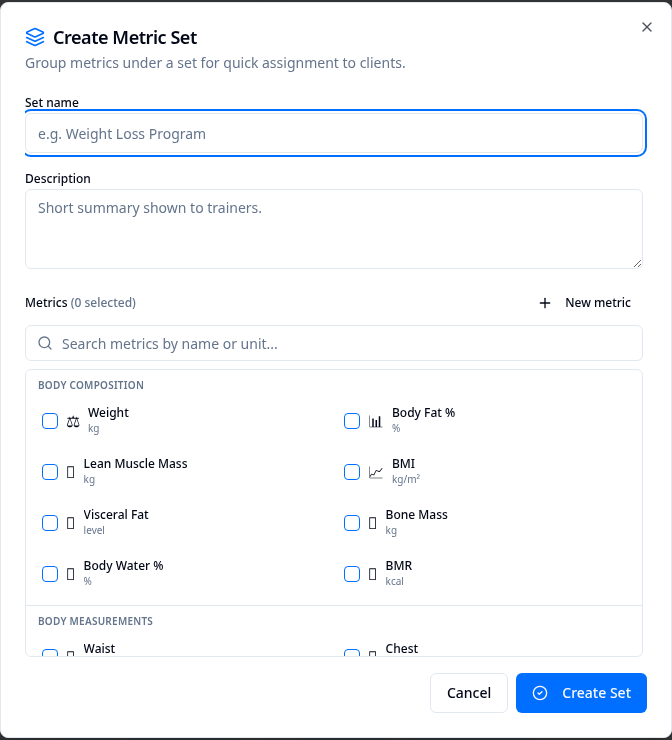
- 1Click New Set in the top-right of the Metrics tab.
- 2Enter a Set name a colleague would understand at a glance — e.g. “Marathon Prep — Weekly”.
- 3Add a short Description. It appears on the set card, so write it for the trainer, not the client: “Weekly endurance load, recovery and body-weight check.”
- 4Use the search box in the metrics picker to find each measurement — search by name (“HRV”), by unit (“bpm”) or by category (“cardio”).
- 5Tick the checkbox next to each metric. The counter beside the Metrics label shows how many are selected.
- 6Click Create Set. The set appears at the top of the Metric Sets grid with a Custom badge.
Rule
A set must contain at least one metric, and a name is required. If you click Create Set with nothing ticked, BuddyPT asks you to add a metric first.
Worked example — “Marathon Prep — Weekly”
| Metric | Unit | Why it's in the set |
|---|---|---|
| Weight | kg | Flags under-fuelling during high-volume blocks |
| Resting Heart Rate | bpm | Early warning for accumulated fatigue |
| HRV | ms | Objective readiness signal before key sessions |
| Sleep Duration | hours | The single biggest recovery lever |
| Muscle Soreness | 1-10 | Subjective check that catches what the data misses |
Editing a set
- 1Hover over the set card — a pencil and a bin icon appear in the top-right corner. On mobile the icons are always visible.
- 2Click the pencil icon to open Edit Metric Set.
- 3Change the name or description, tick metrics to add them, untick to remove them.
- 4Click Save. Existing client assignments keep their history; only future logging follows the updated list.
Real-world example
Mid-season, Priya adds Readiness Score to her “Marathon Prep — Weekly” set. Her six runners keep every weight and HRV entry they've already logged — the new metric simply starts appearing on next week's check-in.
Deleting a set
- 1Hover over the card and click the red bin icon.
- 2The set disappears from the grid immediately.
Before you delete
Deleting a set removes the shortcut, not your data. Measurements already logged against those metrics stay on the client's Metrics tab. If a set is only used by one client, consider editing it instead of deleting.