Overview
Once you've published at least one Session Type and one Availability window, clients can book you from the BuddyPT Client App. The app only shows dates and times inside your availability, and every booking still needs your approval before it becomes confirmed.
Two ways to book
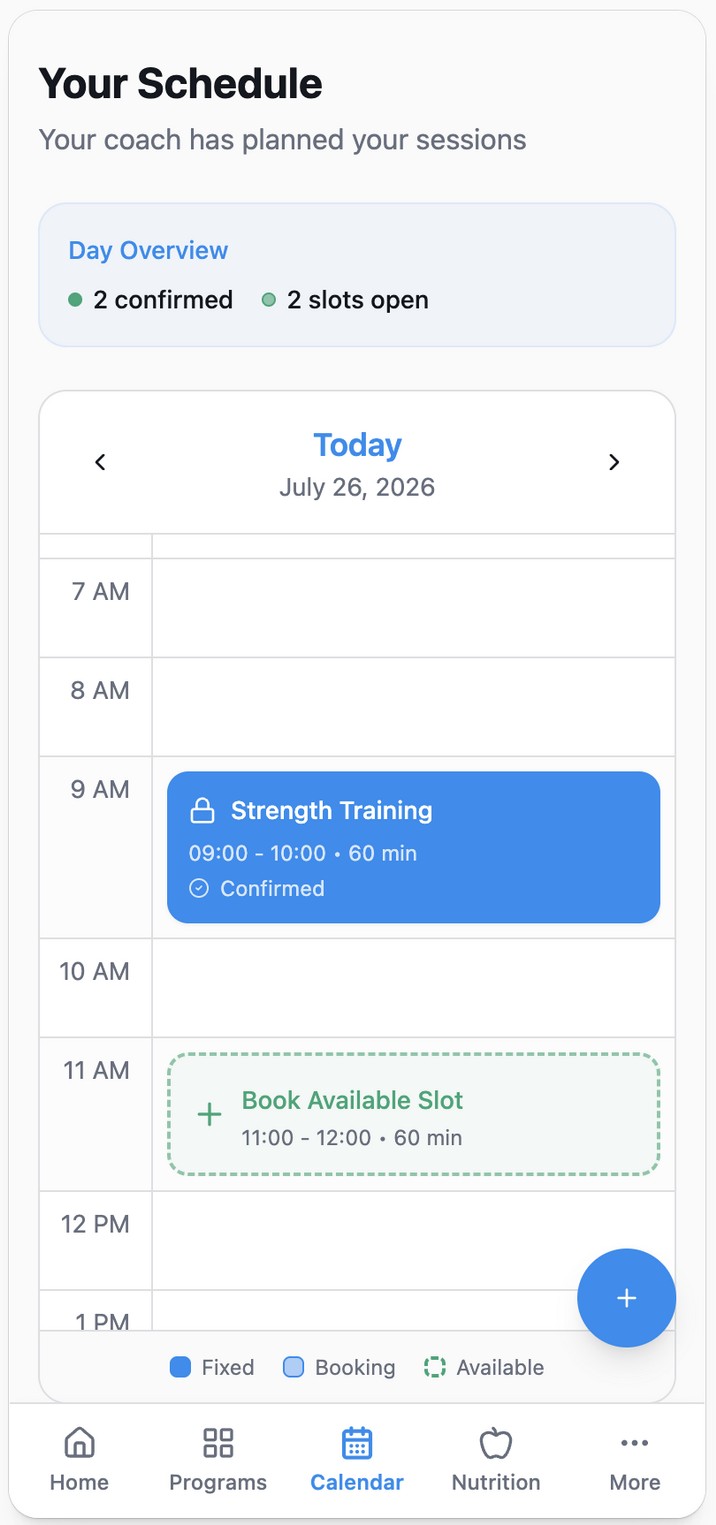
Clients can either tap an open slot on their day schedule, or open Book a Session and pick a session type first. Both paths end at the same Confirm Booking screen.
Path 1 — Book from the day schedule
- 1Open the Calendar tab and land on Your Schedule.
- 2Scan the day for tiles marked Book Available Slot (dashed green outline).
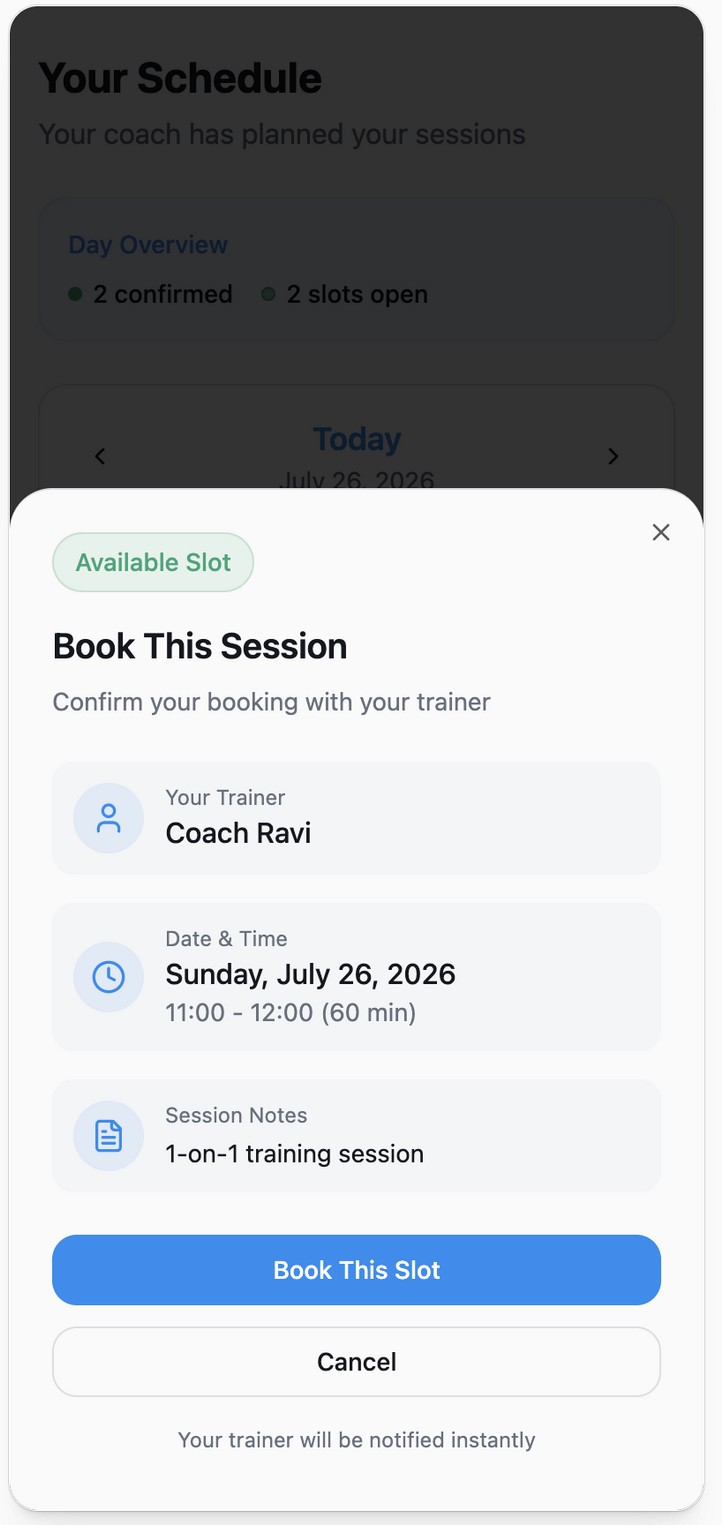
- 3Tap the slot to open the Book This Session sheet.
- 4Review the trainer, date/time and session notes, then tap Book This Slot.
Path 2 — Search availability by session type
If the client would rather start from a session type — for example a 30-minute Online Consultation — they can open Book a Session and let the app show every matching slot.
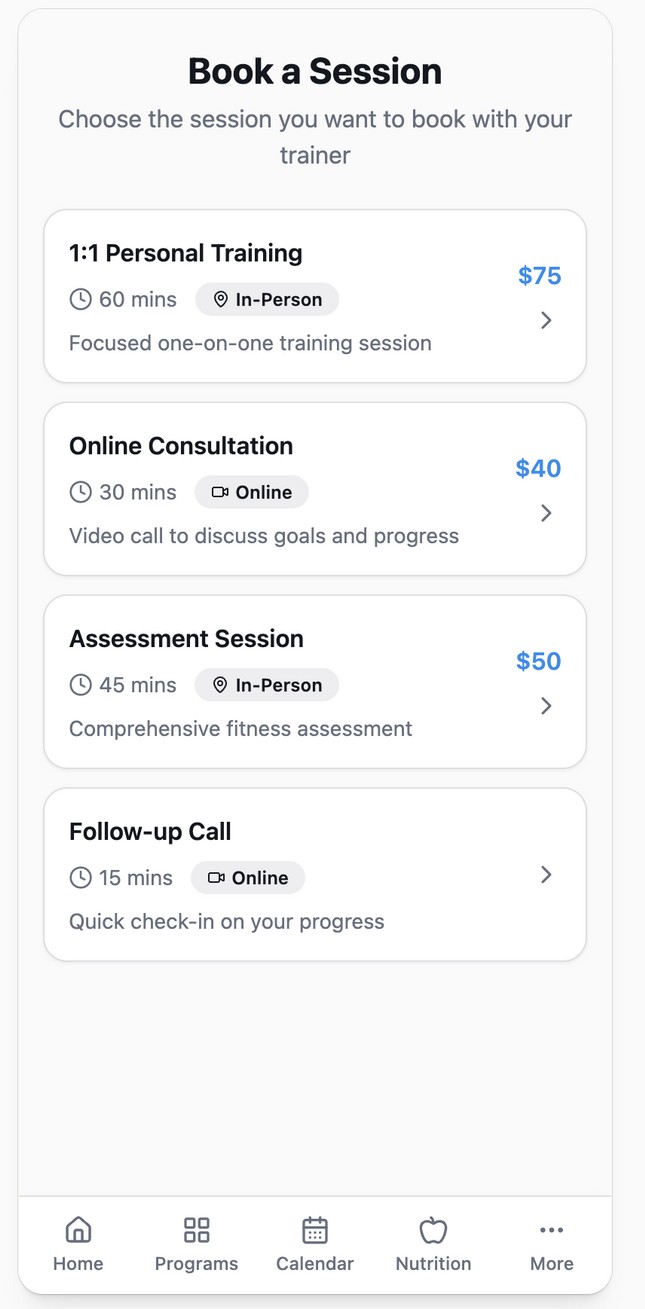
- 1From the Calendar tab, tap Book a Session (or the + button).
- 2Choose a session type — the list shows duration, delivery mode and price.
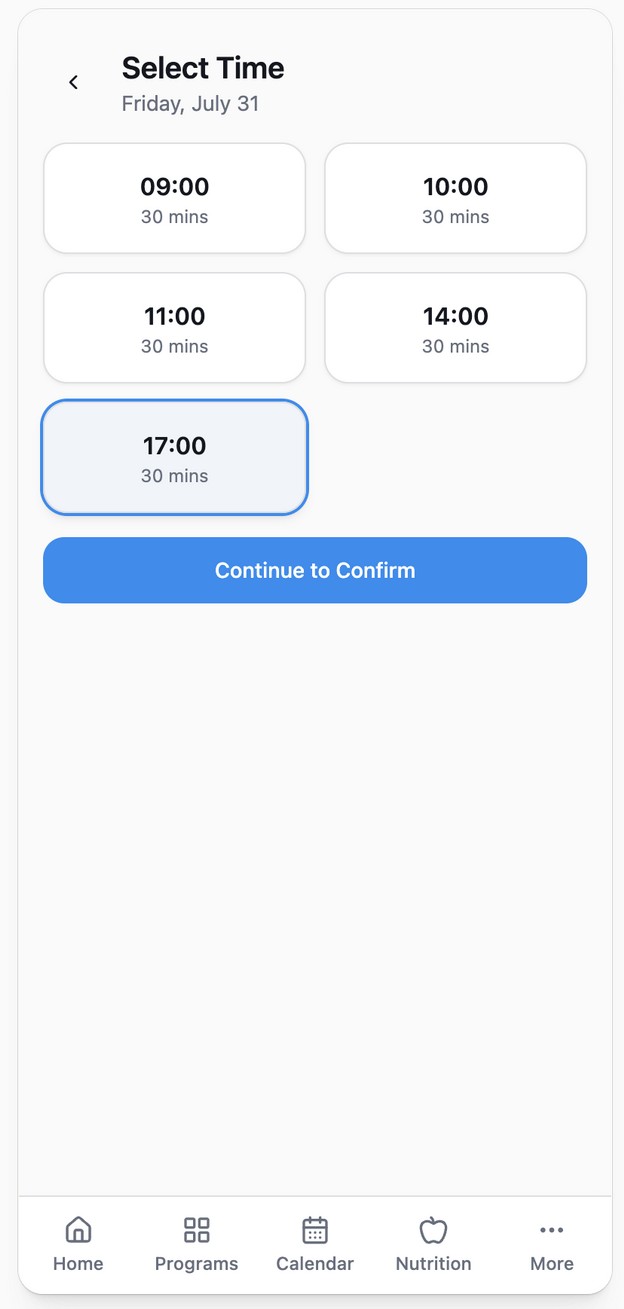
- 3On Select Time, pick one of the highlighted slots for the chosen day.
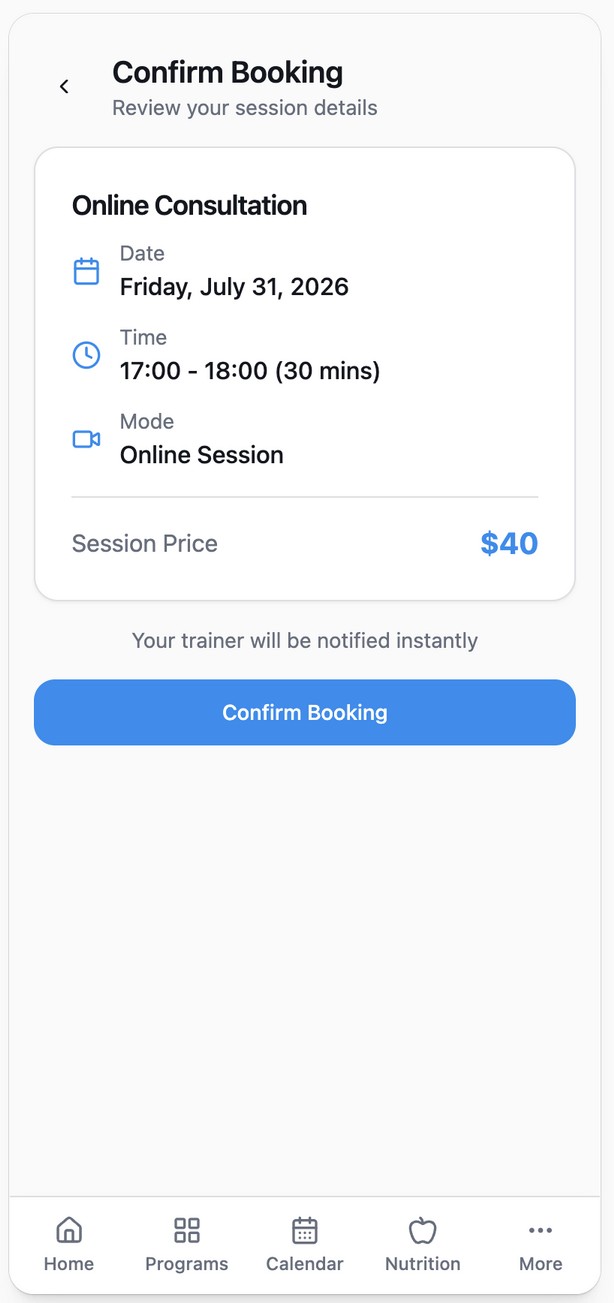
- 4Review the details on Confirm Booking and tap Confirm Booking.
What happens after the client confirms
- The booking lands on your Schedule tab as an amber Pending tile and inside Needs Your Attention on the Dashboard.
- The client sees the same session on their schedule with a Pending badge until you act on it.
- You can Approve, Decline with a message, or Propose New Time — see Client bookings & approvals.
- If you Reschedule or Cancel later, the change is pushed to the client's app automatically.
Payment isn't collected in-app
The price on the Confirm Booking screen is informational. BuddyPT does not process payment inside the Client App yet — collect it separately (payment link, bank transfer, package credit) once you approve the booking.
Common client-side questions
- Why can't I see any slots? The trainer has no active Availability window that fits the chosen session type — ask them to publish one.
- Why is my booking still pending? The trainer hasn't approved it yet; they receive an in-app notification the moment it's submitted.
- Can I change the time after booking? Not directly — cancel the pending booking and rebook, or message the trainer to reschedule after approval.
Tip for trainers
Walk a new client through Path 1 once during onboarding. Seeing the green Book Available Slot tile removes almost every future support question about how to book.