Pending requests
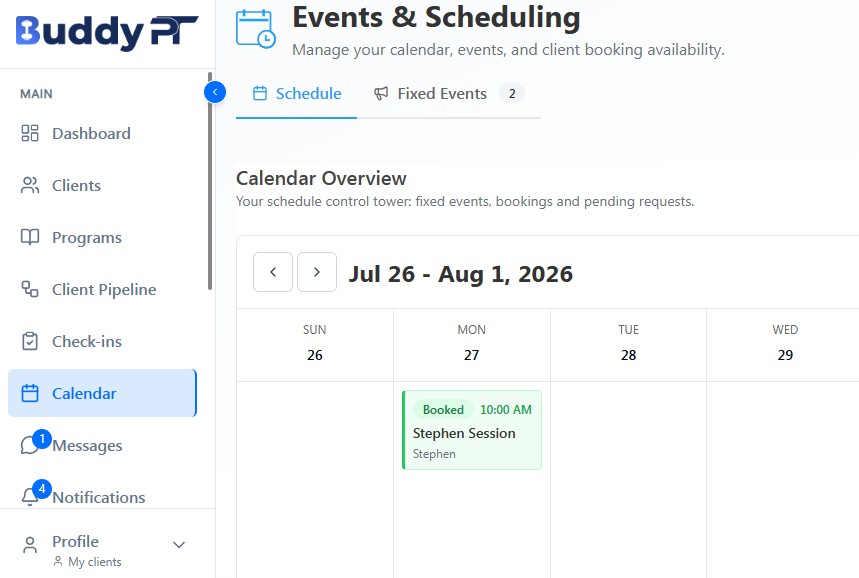
New client requests appear as amber Pending tiles on the Schedule tab and inside Needs Your Attention on the Dashboard. Pending requests do not block the slot on your calendar until you approve them.
- 1Click the amber tile to open the Event Drawer.
- 2Review the client, session type and requested time.
- 3Choose Approve, Decline with a message, or Propose New Time.
Approving a booking
Approve Booking confirms the appointment and blocks the slot on your calendar. The status updates to Confirmed, the tile turns green, and the client is notified automatically.
Declining a booking
- 1Open the pending booking from the calendar or Dashboard.
- 2Click Decline and optionally add a short message explaining why.
- 3The request is cancelled, the client is notified, and the slot becomes available again.
Proposing a new time
Use Propose New Time when the session type works but the slot doesn't. Pick an alternative inside your Availability and the client receives a one-tap accept/decline notification — no need for them to start the booking flow again.
Rescheduling & cancelling confirmed bookings
- 1Open the confirmed booking from the calendar.
- 2Click Reschedule inside the drawer.
- 3Pick a new time inside your Availability.
- 4Add an optional note (recommended) and confirm — the client receives a reschedule notification.
Collecting payment
BuddyPT does not yet collect payment inside the Client App at booking time. When you approve a paid session, follow up with the client using a payment link (Stripe, PayPal, bank transfer, etc.) and mark it collected in your usual workflow. In-app payments are on the roadmap.