When to use Manual Mode
Selecting Manual Mode requires no additional setup. Once selected, you can immediately begin adding clients and managing your coaching business.
Manual Mode is ideal if you collect payments using:
- Cash
- UPI
- Bank Transfer
- External payment providers
In this mode:
- BuddyPT does not monitor payments.
- Client access is not affected by whether a payment has been received.
- The trainer manually controls when clients become Active or Inactive.
Step 1 — Add a Client
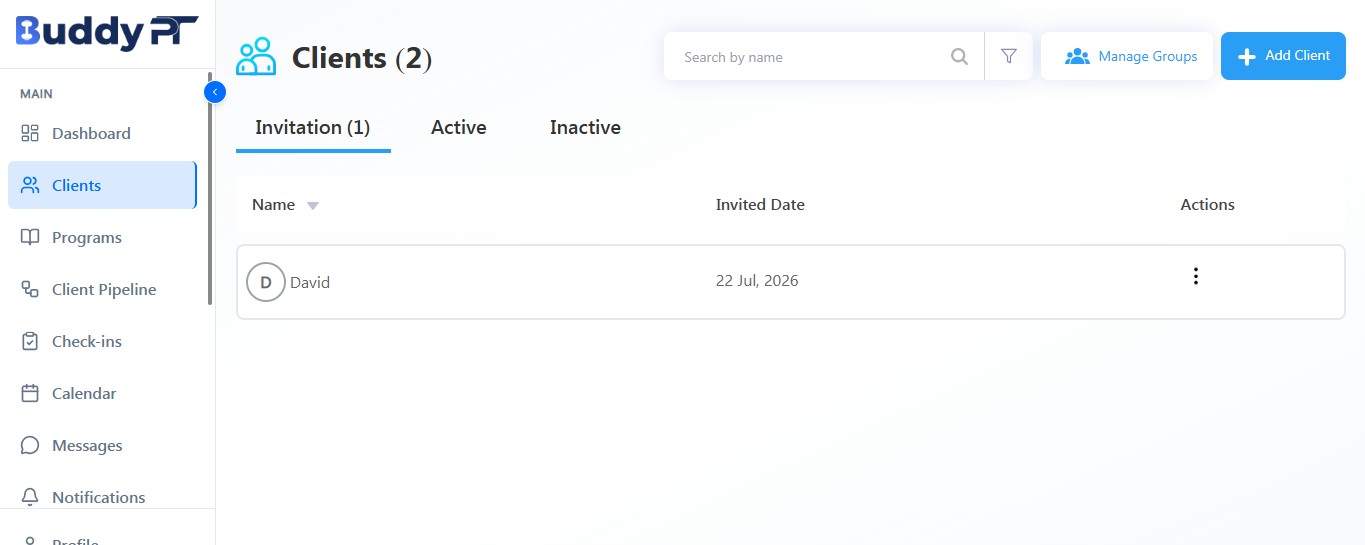
Navigate to Clients → Add Client.
- 1Enter the client information and create the client.
- 2The client will initially appear under the Invitation tab.
Step 2 — Client Receives Invitation
BuddyPT automatically sends a welcome email with account activation instructions. The email walks the client through:
- 1Downloading the BuddyPT app (iOS or Android).
- 2Logging in for the first time with their registered email address.
- 3Entering the One-Time Password (OTP) sent to their email to activate the account.
Step 3 — Client Accepts the Invitation
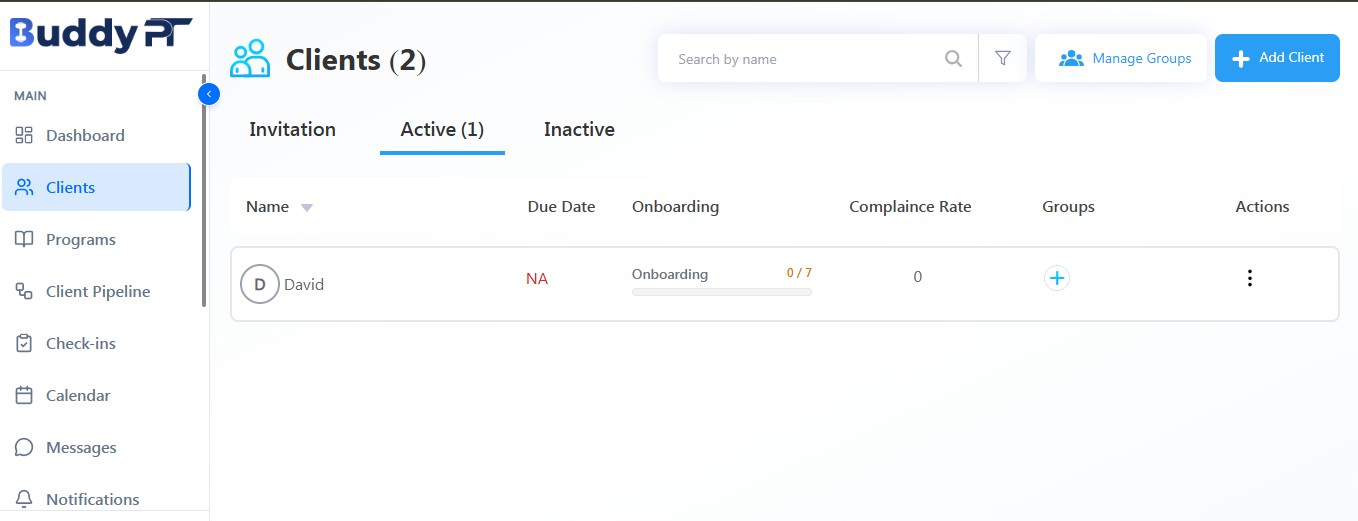
Once the client opens the invitation, logs in, and activates their account, BuddyPT automatically changes the client status to Coaching under the Active tab.
Step 4 — Collect Payments
Payments can be collected offline, in cash, via bank transfer, UPI, or even through Stripe.
Step 5 — Missed Payment
If a client does not make payment, BuddyPT will not move the client to Inactive automatically. The client continues to have:
- Mobile App Access
- Workout Access
- Nutrition Access
- Coaching Access
…until the coach manually changes the status.
Step 6 — Move Client to Inactive
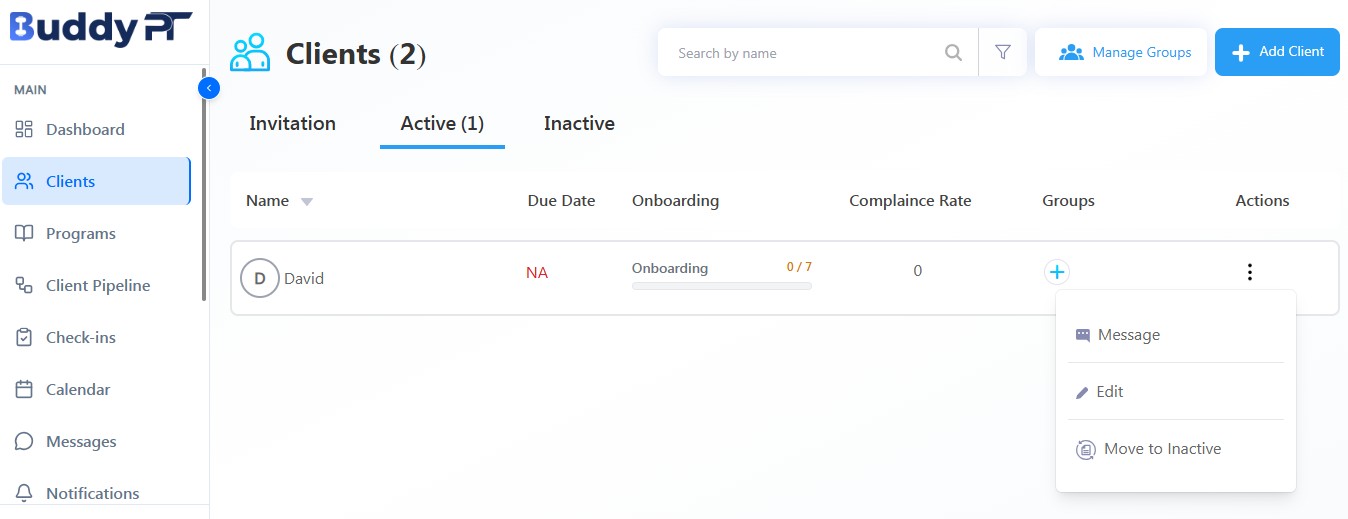
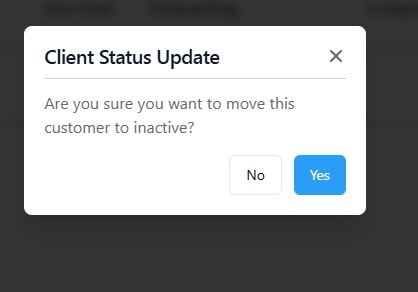
If you decide to stop coaching due to non-payment, open the client's action menu and select Move to Inactive. The client will then appear under the Inactive tab.
Step 7 — Reactivate Client
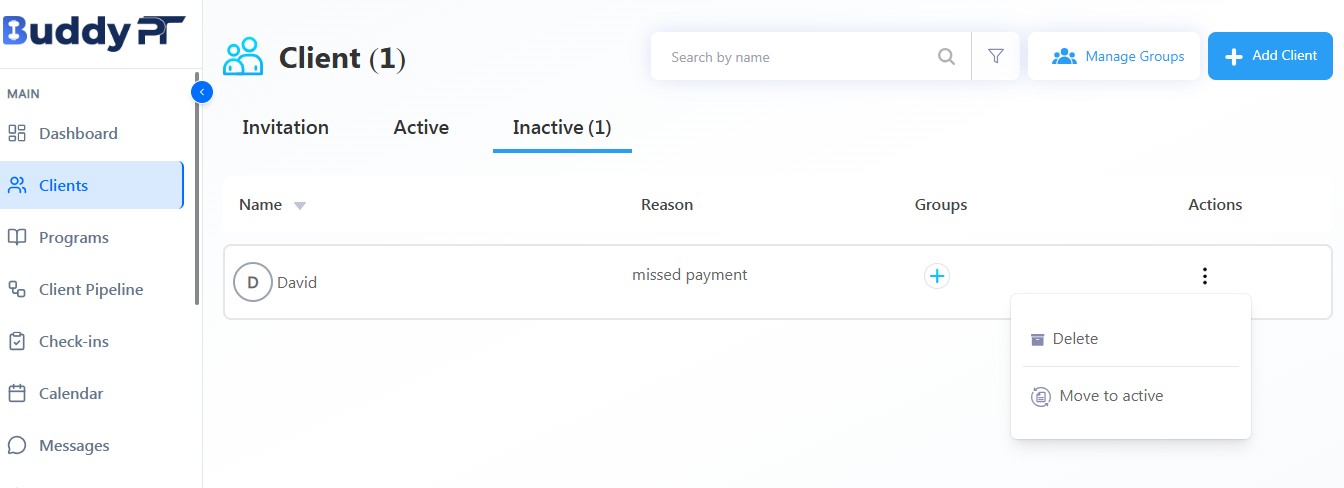
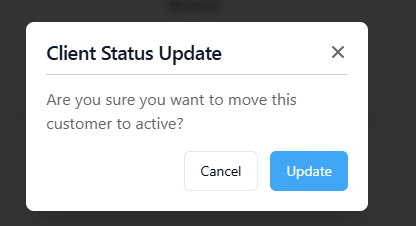
Once payment is received, open the action menu on the Inactive tab and select Move to Active. BuddyPT immediately returns the client to Active → Coaching and access is restored.