What this module gives you
The Calendar combines a live schedule, invite-only group events, one-to-one client bookings, session-type configuration and availability rules in one connected workspace. It opens on the Events & Scheduling home with two primary tabs — Schedule and Fixed Events — and a Booking Settings shortcut on the top right.
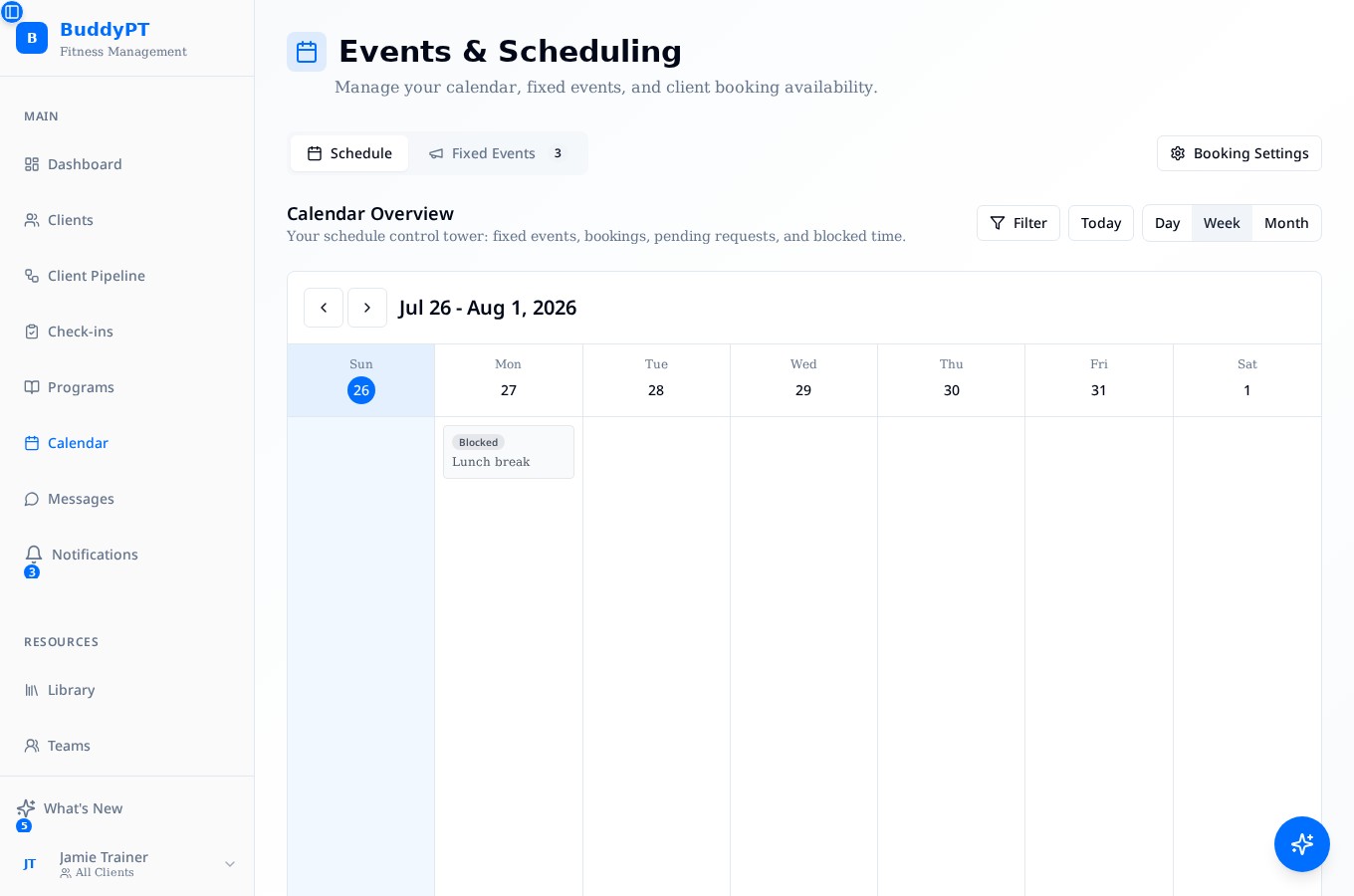
Anatomy of the screen
- Header — page title, sub-title, and the Booking Settings shortcut.
- Tabs — Schedule (live calendar) and Fixed Events (invite-only group sessions). A numeric badge on Fixed Events shows the count of upcoming events.
- Toolbar — Filter, Today shortcut, and Day / Week / Month view switcher.
- Calendar grid — the working area. Colour coding distinguishes the four item types.
The four item types
| Type | Colour | What it is |
|---|---|---|
| Fixed Event | Blue | Trainer-owned, invite-only group session. |
| Confirmed Booking | Green | Accepted 1:1 session from a client. |
| Pending Request | Amber | Booking request waiting for your approval. |
| Blocked Time | Grey | Time you are unavailable — one-off or recurring. |
Rule
Clients cannot create ad-hoc bookings. Every 1:1 booking must map to a Session Type you have published and fall inside an Availability window.
Choosing a view
Use the view switcher on the top right to change between Day, Week (default) and Month.
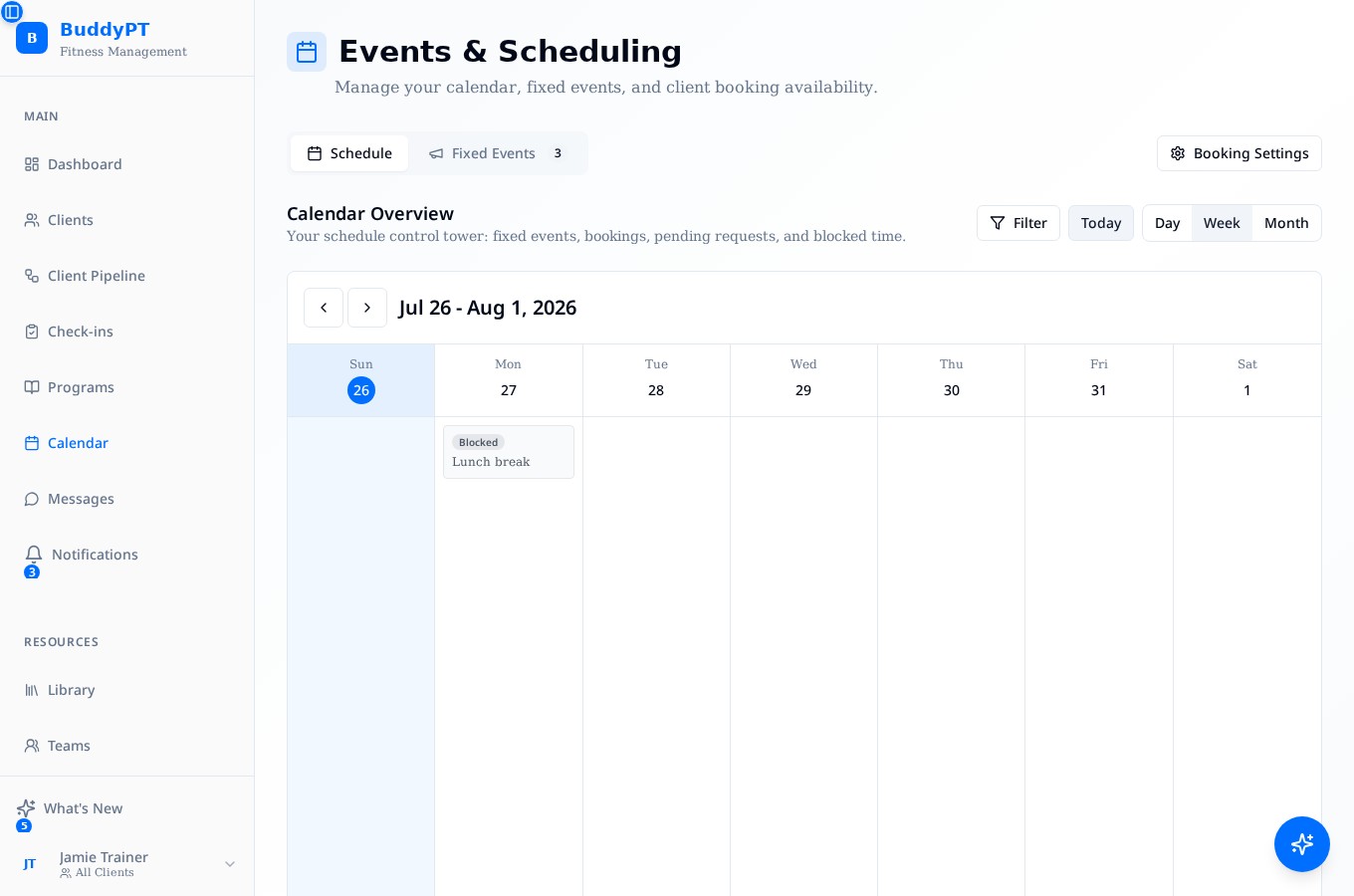
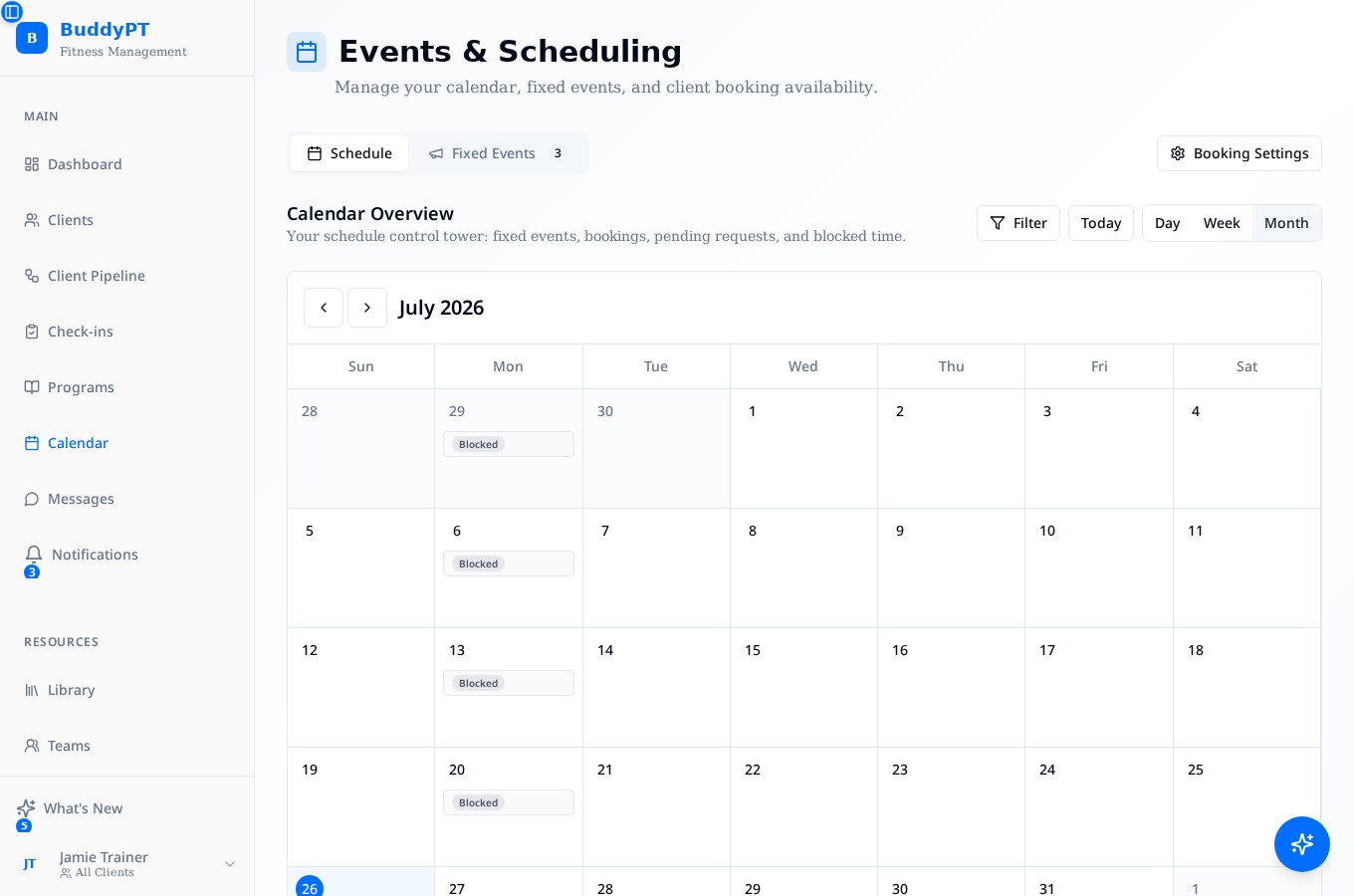
- Day — pre-session prep, travel days, or back-to-back client blocks.
- Week — the default operating rhythm; ideal for confirming the coming seven days.
- Month — programme planning, holiday blocks, and workshop scheduling.
Navigating dates
- 1Click the left or right chevron next to the date range to move one period.
- 2Click Today to jump back to the current day.
- 3Switching view keeps the current date centred, so you never lose your place.
Filtering what appears
Click Filter to toggle which item types show on the grid.
- Show Fixed Events — hide group sessions for a 1:1 focus view.
- Show Bookings — hide confirmed bookings while triaging pending requests.
- Show Pending Requests — hide amber tiles once processed.
- Show Blocked Time — hide personal blocks for a clean client-facing view.
Tip
Filters are session-local. Reloading the page restores the default — all four types visible.
Interacting with an item
Click any tile to open the Event Drawer on the right. The available actions depend on the item type:
| Item | Actions |
|---|---|
| Fixed Event | Edit, cancel, view invited clients. |
| Confirmed Booking | Reschedule, cancel, mark complete, message the client. |
| Pending Request | Approve, decline, or propose a new time. |
| Blocked Time | Edit range, remove, or convert to recurring. |